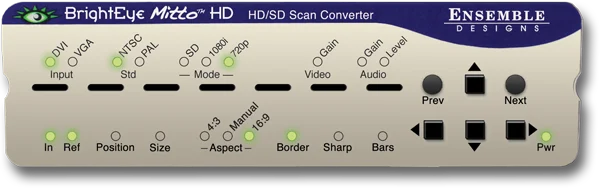
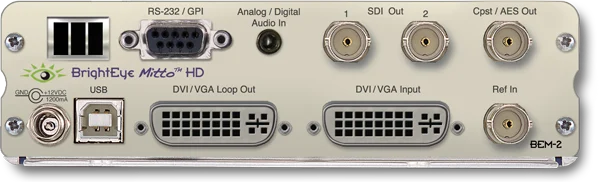
Use BrightEye Mitto™ HD BEM-2-H to deliver DVI, HDMI, and VGA sources to HD and SD SDI destinations. Ensemble Designs’ proprietary scaling and filtering technology ensures that Mitto always produces a pristine, detailed video output. Even the most demanding CGI material is faithfully rendered to television.
YouTube, Zoom, Tik-Tok, and Everything Else Made Easy
Take just about any source to HD or SD SDI video. Computer video can now be used for the most demanding applications including broadcast, high-end military, medical, classroom, church and corporate. Just a small part of the screen, such as a Tik-Tok video, can be selected with a mouse and converted to full screen HD. Mitto delivers the best looking video – compare Mitto to any other scan converter and see the difference!
Choose the Functionality You Need
Choose the best combination of features and price for your application. Eight different Mitto units offer varying types of outputs and capabilities. All Mitto units accept VGA, DVI and HDMI input signals from PC and Mac computers.
HDCP is not a Problem;
Many systems now require HDCP for video playback, regardless of content licensing.
BEM-2-H can handle HDCP encrypted content with the added BEM-HDCP option.
Muting Disable available with the purchase of option BEM-HDCP license and signed waiver.
BrightEye Control Software
Using BrightEye control software, you can easily time BrightEye Mitto into a video production switcher or router. From your desktop, you have complete and intuitive control of video format, video levels, output timing, mixing audio channels, and audio delay.
Pristine, Detailed Video Output
A superior quality scan converter, BrightEye Mitto has the advantage of proprietary scaling technology and exclusive multi-tap filtering. Even a small part of the computer screen, such as a YouTube video, will be upconverted to full screen HD. The region selected for output determines if Mitto acts as an up converter or downconverter. The output looks as good, or better, than the original and passes the most stringent testing.
Easy To Use
Use the Selection Tool in BrightEye Control to select what portion of the screen you want to output. The Selection Tool floats over the content on your display, showing the portion of the video that will be output from BrightEye Mitto.
Use Your Mouse To Select What is Output to Video
Use your mouse to click and drag over the specific portion of computer video that you want to output. The perspective of seeing the whole screen relative to your selection gives you the ability to choose exactly which portion of the video you want to scan convert for output. Resize the selection window by clicking and dragging with your mouse. Mitto’s video output automatically goes to pillarbox or letterbox as needed. Mitto automatically maintains perfect aspect ratio.
Digital and Analog Video and Audio
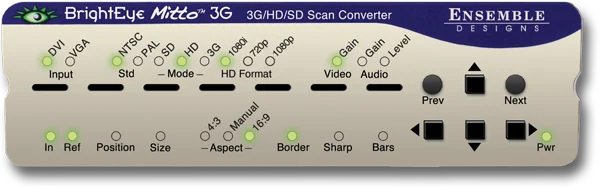
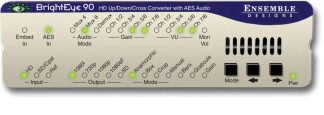
The intuitive front panel interface makes it easy to choose the desired video output format. The genlock reference input allows the video outputs to be timed to house.
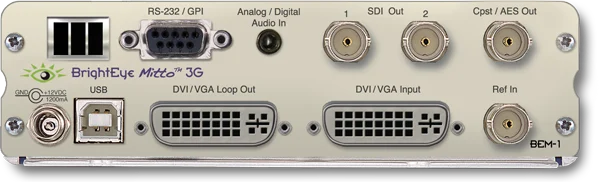
Audio can be input through the DVI (or HDMI with adapter) input, or the 3.5mm audio input. The audio input accepts analog audio or AES digital audio. Audio is embedded into the SDI outputs – which is required for many high end applications. Audio delay controls let you adjust the audio timing with respect to video for perfect lip sync, which is crucial when using Zoom, Google Meet, or Microsoft Teams video in a production environment.