• Skip to main content
  • Why Plura
    • Our Team
    • Videos
    • 15th Anniv.
    • Our History
    • Case Studies
    • Distributors
  • Products
    • At a Glance
    • X Processing
    • I.M.D.P.
    • Monitors
    • Timing
    • Calibration
    • Viewfinders
  • Support +
    • Downloads
    • Virtual Mtg.
    • RMA Request
  • News & Events
    • News
    • Events
  • Contact
  • Why Plura
    • Our Team
    • Videos
    • 15th Anniv.
    • Our History
    • Case Studies
    • Distributors
  • Products
    • At a Glance
    • X Processing
    • I.M.D.P.
    • Monitors
    • Timing
    • Calibration
    • Viewfinders
  • Support +
    • Downloads
    • Virtual Mtg.
    • RMA Request
  • News & Events
    • News
    • Events
  • Contact
Signal Processing
I.M.D.P.
Monitors
Timing
Calibration
Viewfinders
Home  //  Signal Processing  //  Avenue  //  Avenue PC Control
avenue_pc-gui-1021x623avenue_pc-gui-1021x623
  • Avenue PC Control

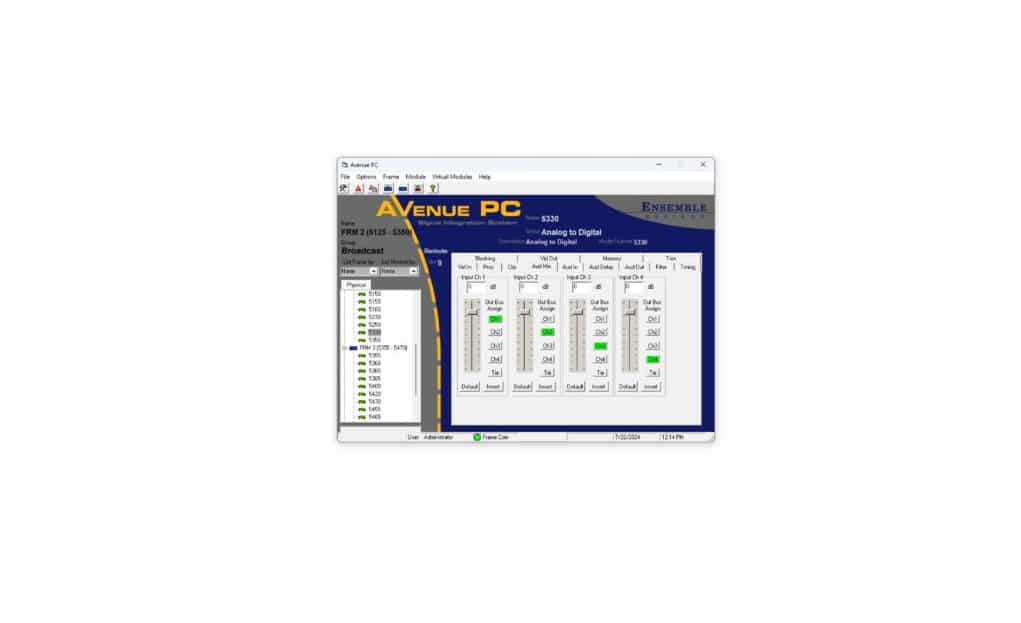
    Avenue’s control system gives you complete control of your video and audio signals. Module configuration is straight-forward and intuitive. Along with Touch Screen and Express Panel control, you can also access and control all frames and modules in the Avenue system with Avenue PC Control Software. The Avenue PC application comes on CD or can be downloaded from the Ensemble website.

    The Avenue PC Control Application Software option is a PC-based remote control application which allows you to completely control, configure and monitor the modules in each of your Avenue frames. Avenue PC can be installed on a PC running all Windows operating systems. PC interface to the Avenue frames can be made through an RS-232 serial connection or through Ethernet.

    Your PC can be connected to one of the Avenue frames (1RU, 3RU, or Intersection Frame) through a PC serial port or via Ethernet on the back of the Avenue frames. When Avenue frames are connected via IP or AveNet, Avenue PC only needs to connect to a single frame to access the entire Avenue System. Regardless of the network topology, Avenue PC will have visibility and control over all of the modules.

    Module Control

    The Module Selection screen is illustrated at right. Available frames on the Avenue network will appear in the window. Expanding each frame will show the Avenue modules present in each frame.

    As shown in the List Frame illustration at right, the frames can be listed by Name, Group and Address ID. The modules can be listed by Name, Group, Slot, Model, and Type.

    When you select a module from the list the setup menus available for that particular module will be displayed. Also displayed on the Mainscreen above the menus will be the Name and Description of the module, the Group, the Module number and whether the module is set to Remote or Local and if the module is Locked or Unlocked. Make sure the front panel switch on the module is set to Remote to allow it to be controlled by Avenue PC.

    Updating Avenue PC and Module Software

    The latest Avenue PC and Avenue Module software can be from the support section.

    Alarms

    Avenue PC gives you the ability to set alarms on a frame or module basis. You can define Low and High Alarms and then set conditions on a frame or module to react with the defined alarms.

    Low and High Alarms

    The control data from each frame module can be used to alert you when a module indicator becomes active or a module is missing. There are two alarm conditions, Low and High. You may define both types of alarms, making one a higher priority than the other or setting up a higher priority condition in one type of alarm.

    Each alarm condition allows you to define the characteristics that will alert you when a module condition changes. Some of the alarm types include Visual Blinking and Audio which allows your PC to sound a Beep or Red Alert. You can also set up an alarm to send an email or page.

    Logging Alarms

    The Alarms pull-down brings up the Alarms definition menu. To add an alarm, click on the Add Alarm box to bring up the Conditions entry screen. You can select the frame, then the module and choose the control data for the alarm given. You may also enable or disable the alarm with the Enable check box in the Conditions screen.

    You can lock modules on Avenue PC and set Module User Levels. Modules in the Avenue system running v2.0 software or later have a User Level assigned to each adjustable control parameter. These levels are assigned to a default according to the type of adjustment. The User Levels of these parameters can be edited by an Administrator if desired using this menu.

    Set User Levels

    To edit Control User Levels, select an Avenue module from the frame list so its control parameters appear in the Edit Control User Level window. Select the individual Control in the list, then click on the User Level desired for this Control parameter. Select Done when finished to save and close the list.

    Save and Load Module Configurations

    Save Module Configuration: This menu allows you to save a module configuration to a file. All module parameters will be stored and this file may be saved or downloaded to another module of the same type.

    Load Module Configuration: Selecting this function brings up a file location menu. The configuration from a stored file can be downloaded to another module of the same type.

    Virtual Modules

    Virtual Modules are custom menus that combine functionality from any modules in the system. Use the Virtual Modules menu to create the combinations of controls from any modules. Virtual modules allow you to customize a module’s menu to meet your facility’s needs.

    Product Documents

    Manuals

    • Avenue System Overview
    • Avenue PC Manual 2.0.8

    Software

    • Avenue PC 2.0.21
    Contact Sales
    • Highlights
    • Specifications
    • Product Downloads

    Description

    • Control and monitor all modules in the system from one or many locations
    • Easily adjust video levels, timing, audio delay and other parameters
    • Store module configurations to another module of the same type
    • Set user-defined alarms to alert you at any time when a fault condition has occurred and to maintain logs. Set email and pager alerts.
    • Download new module software – free for the life of the product!
    • Define access to each module parameter based on User Levels
    • Define security User Levels protected by pass codes for locking out module changes on critical paths
    • Customize module menus by creating “Virtual Modules,” custom groups of menus that combine functionality from any modules in the system

    Additional information

    Control

    Ethernet, RS232

    Product Documents

    Manuals

    • Avenue System Overview
    • Avenue PC Manual 2.0.8

    Software

    • Avenue PC 2.0.21

    Related products you might be interested in

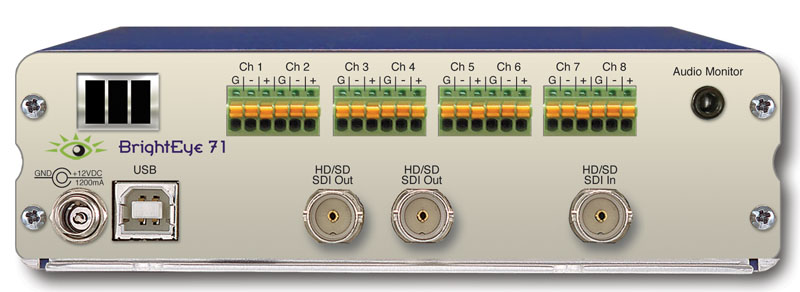
    BrightEye 71 & 71-F HD/SD 8 Channel Analog Audio Embedder/DisembedderThe BrightEye 71 is a dual rate eight channel analog audio embedder or disembedder for 1.5Gb/s high definition video signals or for 270Mb/s standard definition signals. The analog audio ports automatically configure as inputs or outputs depending if the module is configured as mux or demux. When configured as a multiplexer, the BrightEye 71 has one serial digital video input and eight analog audio inputs. The audio streams are embedded into the video stream. The output of the module is a digital stream that contains the original video and audio signals. When configured as a demultiplexer, audio signals present in the incoming video signal are extracted and delivered as analog audio. The BrightEye 71 includes an eight channel audio mixer with channel swap and shuffle capability that allows you to completely re-arrange and re-mix audio channels. It provides precise control over audio level, with up to 12 dB of gain to compensate for low level sources. All audio processing is performed at full 24 bit resolution by a digital signal processor (DSP). Delay is adjustable up to one second. Order the BrightEye 71-F if you need an optical output.
    BrightEye 24 SDI to Analog Converter and DisembedderBrightEye 24 is both a disembedder (demultiplexer) and a digital to analog video converter. The incoming serial digital video signal is converted to an analog composite output. Audio signals present in the incoming digital video signal are extracted and delivered as four channels of analog audio. Audio mixing, level adjustments, and channel shuffling are accessed through the BrightEye Control app. Audio group selection is also made through BrightEye Control. A variety of audio connectors and adapters are available for integrating BrightEye 24 to any type of system. Use BrightEye 24 in desktop and broadcast applications.
    BrightEye 15 SDl to Analog Converter with Frame Sync/GenlockBrightEye 15 is a digital to analog video converter with a timeable output. It’s perfect for feeding analog switchers and routers, where signal timing is required. BrightEye 15 has an SD SDI video input and a reference input. The input signal is converted to analog composite and synchronized (genlocked) to the reference signal. The analog composite output is fully timed with respect to the reference, including ScH phase. Basic controls are provided on the front panel. With the BrightEye Control app, you can control video proc functions; Gain, Chroma, Pedestal, and Hue. The vertical interval can be passed or blanked.
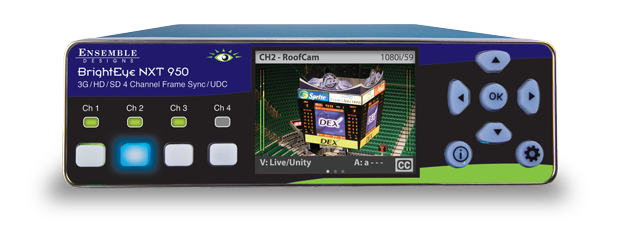
    BrightEye NXT 950 4 Channel SDI Frame Sync & U/D/CThe BrightEye NXT 950 Frame Synchronizer packs a lot of features in a tiny package. Frame Synchronization and Format Conversion, with 16 channels of embedded Audio. The NXT 950 has four independent frame synchronizers. Each supports automatic input format detection and conversion to desired output format. Adjust video and chroma gains with the built-in Proc Amp. Color Correct to compensate for input material or to match projectors and monitors. Adjust levels and swap/mix channels in Embedded Audio. Even embedded surround sound (Dolby, AC-3) is synchronized from input to output. Control the Frame Syncs and monitor each channel’s input and output from the front panel, or through the interactive Web interface. Rackmount up to three NXT 950s in 1RU for the ultimate processing density.

    Looking for something else?

    Signal Processing
    I.M.D.P.
    Monitors
    Timing
    Calibration
    Viewfinders

    Contact Sales

    International

    • Plura Europe GmbH Germany
    • Plura MEA Dubai – UAE
    • Plura ASIA Seoul – S. Korea

    The Americas

    • Arizona Plura Broadcast, Inc. HQ

    Stay in touch for news on the latest in product development

    Copyright © 2026 Plura Inc. All Rights Reserved.